- App
- Make
- n8n
How to convert HTML to PDF
To convert HTML to PDF, send the HTML or the URL of a public web page to the 1001fx function html2pdf – from Make, n8n or the 1001fx app. It prints the page with Chromium like a browser, with CSS, web fonts and images, and returns the PDF file.
The fields
The same in the 1001fx app, Make and n8n. html2pdf costs 5 credits per call.
- html
- – The HTML from the previous step. Leave url empty.
- url
- – Alternatively the address of a public web page to print. Fill either html or url.
- format
- – Paper format: A3, A4 (default), A5, Letter, Legal or Tabloid.
- landscape
- – true for landscape pages, false (default) for portrait.
All parameters and examples: html2pdf reference.
Example
What you send to html2pdf and what comes back – the same in every tool.
HTML to PDF – Create PDF from HTML or URL
HTML to PDF – Create PDF from HTML or URL
Input
{
  "html": "<h1 style=\"font-family:sans-serif\">Offer 2026-117</h1><p>Thank you for your request.</p>",
  "format": "A4"
}Output · HTTP 200
{
  "statusCode": 200
}Show curl command
curl -X POST 'https://api.1001fx.com/files/html2pdf' \
  -H 'X-API-KEY: YOURSECRETAPIKEY' \
  -H 'Content-Type: application/json' \
-d '{"html":"<h1 style=\"font-family:sans-serif\">Offer 2026-117</h1><p>Thank you for your request.</p>","format":"A4"}'In the 1001fx app
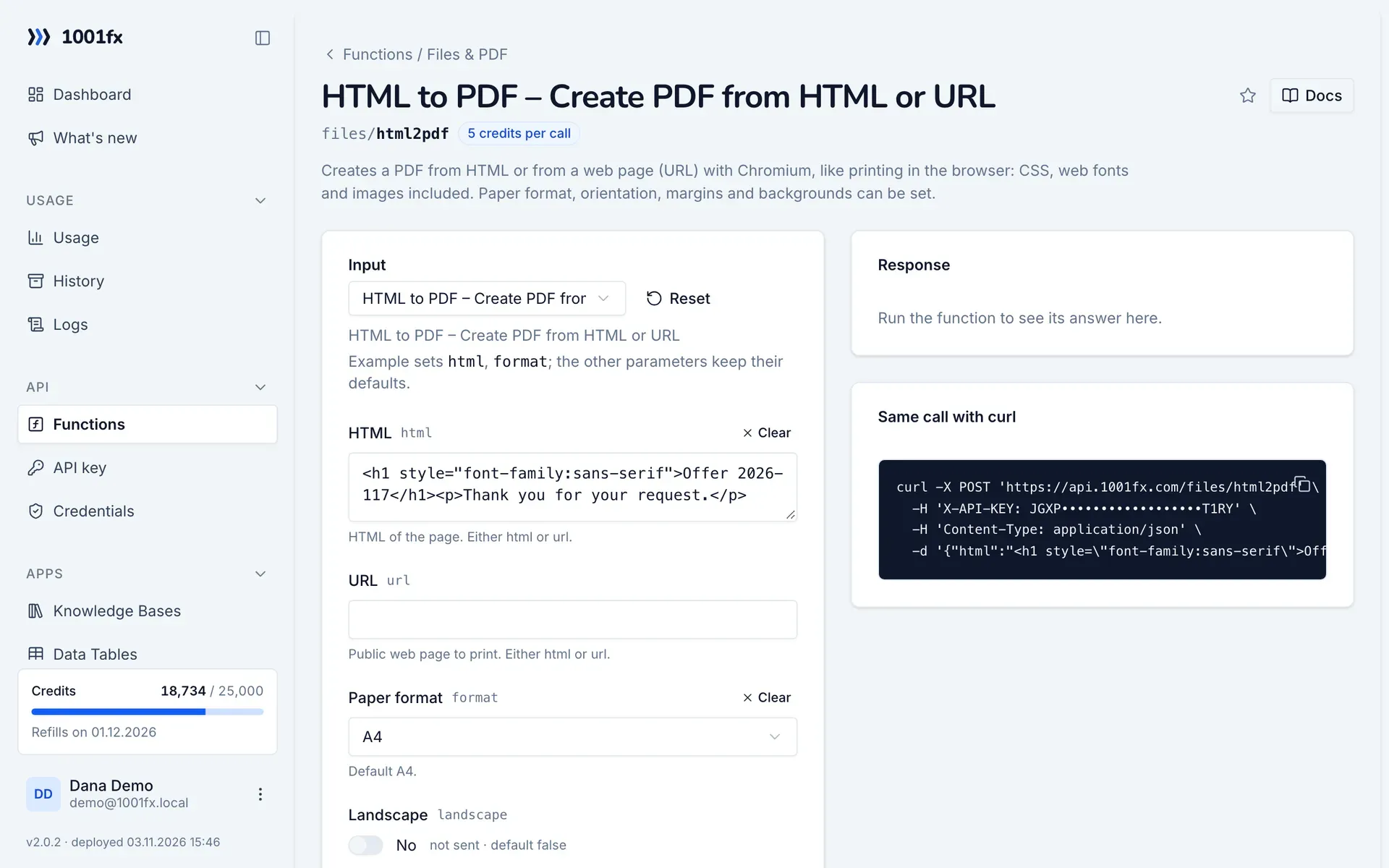
Without a scenario or workflow: run the function in your browser for a one-off task, or to try the fields before you build the automation.
- 1
Open the function
Log in to the 1001fx app and open Functions → HTML to PDF – Create PDF from HTML or URL.
- 2
Fill the fields
Fill the fields as described above. Files can be uploaded from your computer.
- 3
Run it
Click Run. The answer appears next to the form; files come as a download. Each run is charged like an API call.
- 4
Reuse the call
The same page shows the call as cURL command, ready for scripts and other tools.
In Make
- 1
Start the scenario
Start with the module that delivers the content, for example Webhooks "Custom webhook" that receives an order, followed by Tools "Set variable" that builds the HTML of your offer or invoice.
- 2
Add the 1001fx module
Add a module, search for 1001fx and pick “HTML to PDF – Create PDF from HTML or URL”. Select your 1001fx connection or create one with your API key.
- 3
Fill the fields
Fill the fields as described above, mapped from the previous steps.
- 4
Use the result
The module returns the PDF as a file. Upload it with Google Drive "Upload a file" or attach it to an email with Gmail "Send an email".
Connecting 1001fx: 1001fx for Make.
In n8n
- 1
Start the workflow
Start with the node that delivers the content, for example a Webhook node that receives an order, followed by an Edit Fields (Set) node that builds the HTML of your offer or invoice.
- 2
Add the HTTP Request node
Add the HTTP Request node and send a POST request to https://api.1001fx.com/files/html2pdf with the header X-API-KEY and your API key.
- 3
Fill the fields
Fill the fields as described above, mapped from the previous steps.
- 4
Use the result
The node returns the PDF as a file. Pass it on, for example to a Google Drive node to upload it or to a Send Email node as an attachment.
How to set up the HTTP Request node: 1001fx for n8n.
Tips
- Put the CSS into the HTML itself. Images, style sheets and web fonts only load if their URLs are public.
- Set margin to a CSS length such as 10mm or 0 to control the white border around the page.
- Check your API key first with playground/hello, which does not charge credits.
Frequently asked questions
- Can I convert a web page by its URL instead of HTML?
- Yes. Fill url with the address of a public web page and leave html empty. Pages behind a login cannot be printed.
- Which paper formats are supported?
- A3, A4, A5, Letter, Legal and Tabloid, in portrait or landscape. Without a format the PDF is A4 with 1cm margins.