- App
- Make
- n8n
How to OCR a scanned PDF to text
To read the text of a scanned PDF, send the file to the 1001fx function ocrpdf – from Make, n8n or the 1001fx app. It returns the text of the pages as Markdown or plain text, with headings and tables, and also reads photos and handwriting.
The fields
The same in the 1001fx app, Make and n8n. ocrpdf costs 6 credits per item.
- file
- – The PDF file from the previous step.
- fileUrl
- – Alternatively the public URL of the PDF. Fill either file or fileUrl.
- pages
- – Optional page selection such as 1-3,7. At most 8 pages per call.
- outputFormat
- – markdown (default) keeps headings and tables, text returns plain text.
All parameters and examples: ocrpdf reference.
Example
What you send to ocrpdf and what comes back – the same in every tool.
OCR PDF
One page as Markdown (costs real provider money with test keys – keep examples at one page)
Input
{
  "fileUrl": "https://api.1001fx.com/testdata/3pages.pdf",
  "pages": "1",
  "outputFormat": "markdown"
}Output · HTTP 200
{
  "statusCode": 200
}Show curl command
curl -X POST 'https://api.1001fx.com/files/ocrpdf' \
-H 'X-API-KEY: YOURSECRETAPIKEY'In the 1001fx app
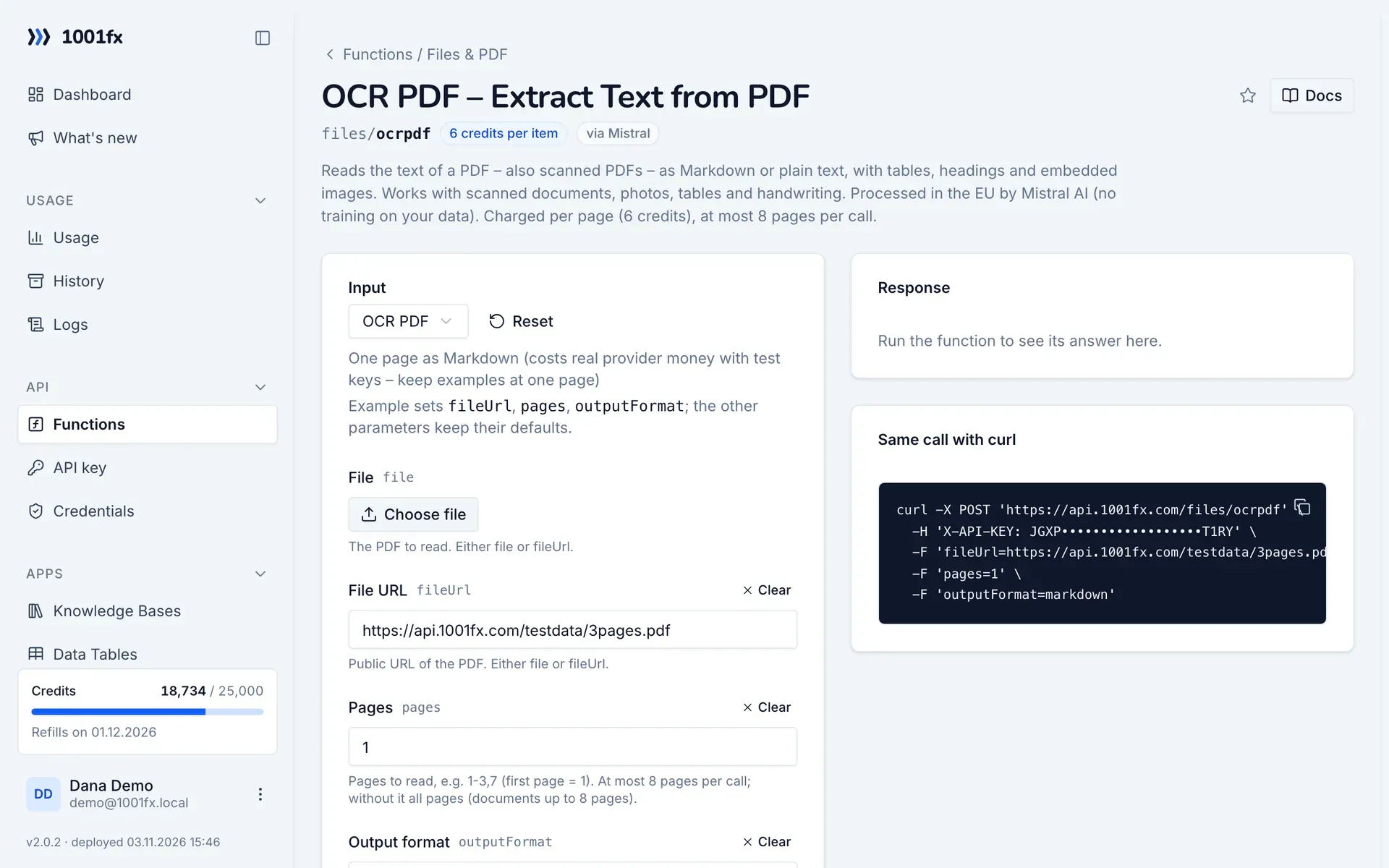
Without a scenario or workflow: run the function in your browser for a one-off task, or to try the fields before you build the automation.
- 1
Open the function
Log in to the 1001fx app and open Functions → OCR PDF – Extract Text from PDF.
- 2
Fill the fields
Fill the fields as described above. Files can be uploaded from your computer.
- 3
Run it
Click Run. The answer appears next to the form; files come as a download. Each run is charged like an API call.
- 4
Reuse the call
The same page shows the call as cURL command, ready for scripts and other tools.
In Make
- 1
Start the scenario
Start with the module that delivers the PDF, for example Gmail "Watch emails" with attachments or Google Drive "Download a file".
- 2
Add the 1001fx module
Add a module, search for 1001fx and pick “OCR PDF – Extract Text from PDF”. Select your 1001fx connection or create one with your API key.
- 3
Fill the fields
Fill the fields as described above, mapped from the previous steps.
- 4
Use the result
The answer is JSON with the text per page and the page count. Map the text into the next module, for example an AI module that summarizes it or a Google Docs document.
Connecting 1001fx: 1001fx for Make.
In n8n
- 1
Start the workflow
Start with the node that delivers the PDF, for example a Gmail Trigger node with attachments or a Google Drive node that downloads the file.
- 2
Add the HTTP Request node
Add the HTTP Request node and send a POST request to https://api.1001fx.com/files/ocrpdf with the header X-API-KEY and your API key.
- 3
Fill the fields
Fill the fields as described above, mapped from the previous steps.
- 4
Use the result
The answer is JSON with the text per page and the page count. Pass the text to the next node, for example an AI Agent that summarizes it or a Google Docs node.
How to set up the HTTP Request node: 1001fx for n8n.
Tips
- OCR is charged per page, so read only the pages you need with pages.
- For documents with more than 8 pages, call the function once per page range.
- If a call takes longer than your scenario or workflow waits, run it in the background with the header x-fx-webhook (see Long-running functions & webhooks in the docs).
Frequently asked questions
- Does it read handwriting and photos of documents?
- Yes. It works with scanned documents, photos, tables and handwriting.
- Where are my files processed?
- In the EU by Mistral AI, which does not train on your data.
- How many pages can I read per call?
- At most 8. Select a range with pages and call the function again for the next range.