- App
- Make
- n8n
- MCP
How to remove EXIF data from images
To remove EXIF data from an image, send it to the 1001fx function removeimageexif – from Make, n8n or the 1001fx app. It removes all EXIF tags, or only the tags you list, for example the GPS position, and returns the cleaned image.
The fields
The same in the 1001fx app, Make, n8n and AI assistants. removeimageexif costs 1 credit per call.
- file
- – The image from the previous step.
- tags
- – Optional: only these tags are removed, for example GPSLongitude, GPSLatitude and GPSAltitude. Leave it empty to remove all EXIF data.
All parameters and examples: removeimageexif reference.
Example
What you send to removeimageexif and what comes back – the same in every tool.
Remove EXIF from image
Removes all exif data from an image
Input
{
  "files": [
    {
      "name": "clouds.jpg",
      "type": "image/jpg",
      "path": "testdata/clouds.jpg"
    }
  ]
}Output · HTTP 200
{
  "statusCode": 200
}Show curl command
curl -X POST 'https://api.1001fx.com/images/removeimageexif' \
  -H 'X-API-KEY: YOURSECRETAPIKEY' \
-F 'file=@clouds.jpg'In the 1001fx app
Without a scenario or workflow: run the function in your browser for a one-off task, or to try the fields before you build the automation.
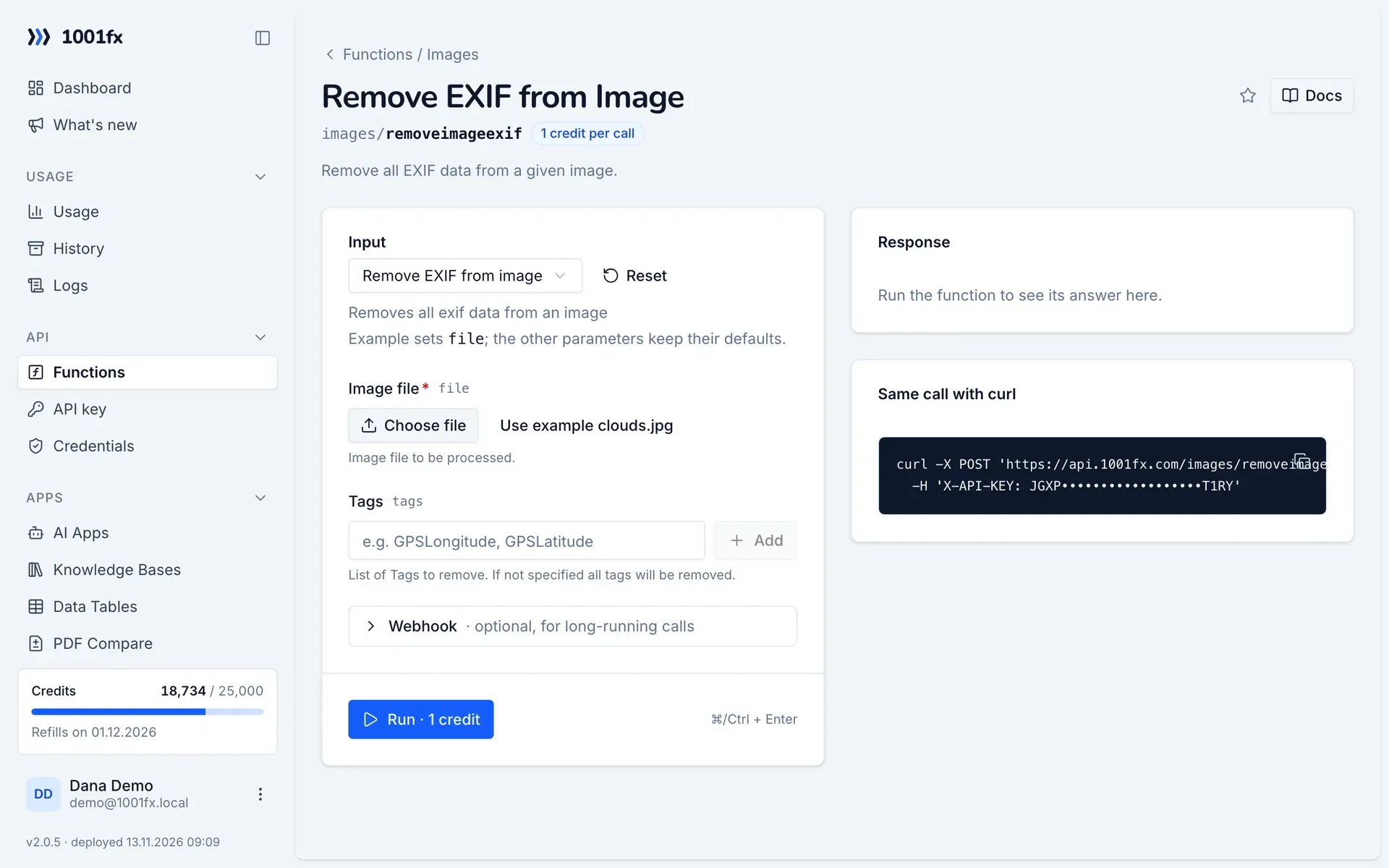
- 1
Open the function
Log in to the 1001fx app and open Functions → Remove EXIF from Image.
- 2
Fill the fields
Fill the fields as described above. Files can be uploaded from your computer.
- 3
Run it
Click Run. The answer appears next to the form; files come as a download. Each run is charged like an API call.
- 4
Reuse the call
The same page shows the call as cURL command, ready for scripts and other tools.
In Make
- 1
Start the scenario
Start with the module that delivers the photo, for example Google Drive "Watch files in a folder" followed by "Download a file".
- 2
Add the 1001fx module
Add a module, search for 1001fx and pick “Remove EXIF from Image”. Select your 1001fx connection or create one with your API key.
- 3
Fill the fields
Fill the fields as described above, mapped from the previous steps.
- 4
Use the result
The module returns the image without the removed tags. Upload it with Google Drive "Upload a file" or publish it on your website or shop.
Connecting 1001fx: 1001fx for Make.
In n8n
- 1
Start the workflow
Start with the node that delivers the photo, for example a Google Drive Trigger followed by a Google Drive node that downloads the file.
- 2
Add the 1001fx node
Add a node, search for 1001fx and pick “Remove EXIF from Image”. Select your 1001fx credential or create one with your API key.
- 3
Fill the fields
Fill the fields as described above, mapped from the previous steps.
- 4
Use the result
The node returns the image without the removed tags. Upload it with a Google Drive node or pass it on to your website or shop.
Connecting 1001fx: 1001fx for n8n.
With an AI assistant (MCP)
Without building anything: connect your assistant to 1001fx once and ask for the result in your own words.
- 1
Connect your assistant
Add the 1001fx MCP server to Claude, Cursor or another MCP client and log in to 1001fx.
- 2
Ask for the result
Describe what you need and mention 1001fx, for example: "Use 1001fx to remove EXIF data from images". The assistant finds images/removeimageexif and fills its fields.
- 3
Get the answer
Pass files as links. File results come back as a temporary download link. Each run is charged like an API call.
Tips
- Remove only GPSLongitude, GPSLatitude and GPSAltitude to hide where a photo was taken and keep the camera data.
- Read the tags first with getimageexif, or change single values with modifyimageexif.
Frequently asked questions
- What does a call cost?
- 1 credit per call.
- Can I keep some EXIF data?
- Yes. List only the tags to remove in tags; all other tags stay in the image.