- App
- Make
- n8n
- MCP
How to scale an image
To scale an image, send it with a factor to the 1001fx function scaleimage – from Make, n8n or the 1001fx app. A factor of 0.5 halves width and height, 2 doubles them, and the aspect ratio stays the same.
The fields
The same in the 1001fx app, Make, n8n and AI assistants. scaleimage costs 3 credits per call.
- file
- – The image from the previous step.
- factor
- – The scale factor, greater than 0 and up to 10, for example 0.5 for half the size.
All parameters and examples: scaleimage reference.
Example
What you send to scaleimage and what comes back – the same in every tool.
Image scaling by factor 2
Scales an image by the given factor
Input
{
  "factor": "2",
  "files": [
    {
      "name": "1600x900.png",
      "type": "image/png",
      "path": "testdata/images/1600x900.png"
    }
  ]
}Output · HTTP 200
{
  "statusCode": 200,
  "headers": {
    "content-type": "image/png"
  }
}Show curl command
curl -X POST 'https://api.1001fx.com/images/scaleimage' \
  -H 'X-API-KEY: YOURSECRETAPIKEY' \
  -F 'file=@1600x900.png' \
-F 'factor=2'In the 1001fx app
Without a scenario or workflow: run the function in your browser for a one-off task, or to try the fields before you build the automation.
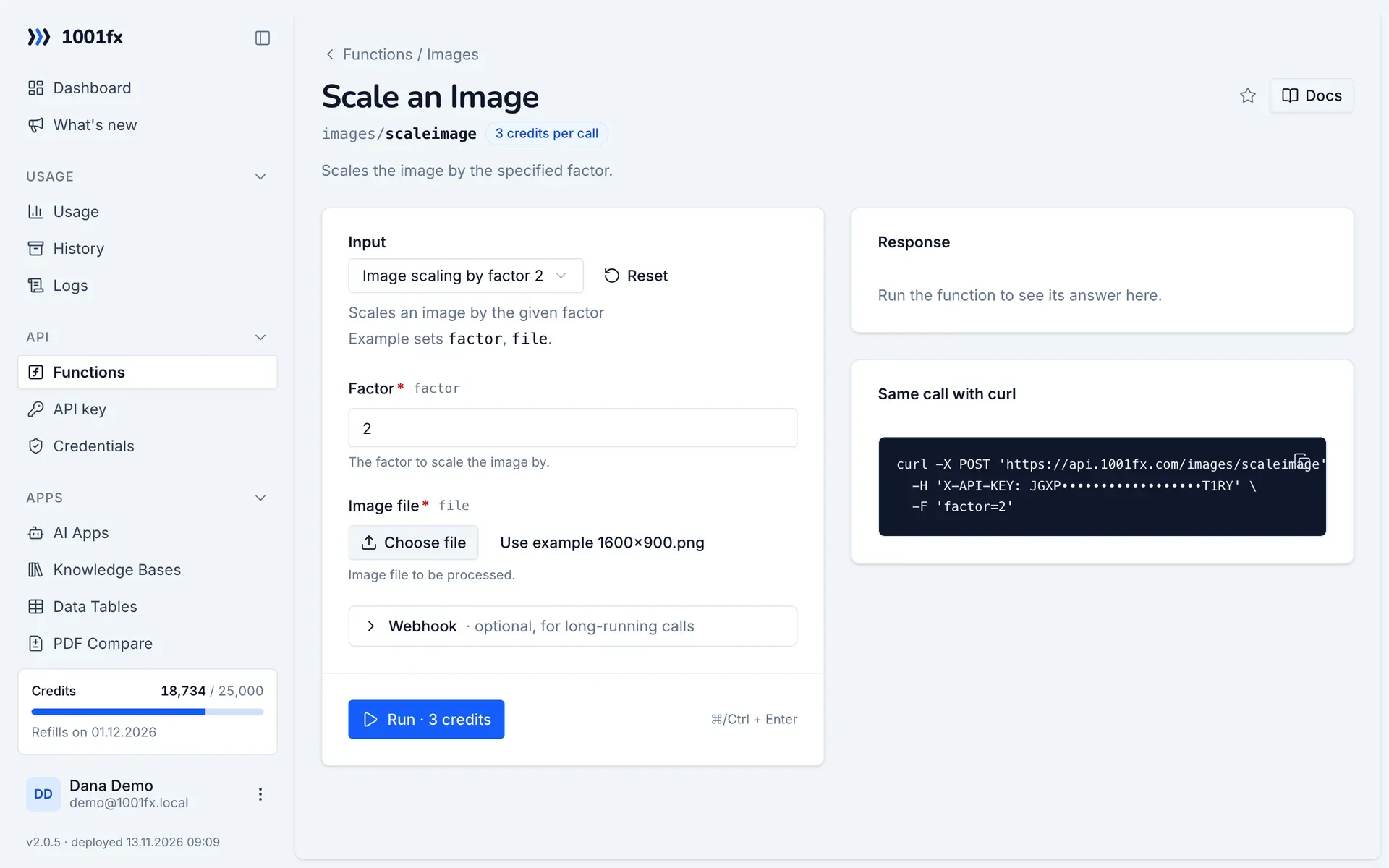
- 1
Open the function
Log in to the 1001fx app and open Functions → Scale an Image.
- 2
Fill the fields
Fill the fields as described above. Files can be uploaded from your computer.
- 3
Run it
Click Run. The answer appears next to the form; files come as a download. Each run is charged like an API call.
- 4
Reuse the call
The same page shows the call as cURL command, ready for scripts and other tools.
In Make
- 1
Start the scenario
Start with the module that delivers the image, for example Google Drive "Watch files in a folder" followed by "Download a file".
- 2
Add the 1001fx module
Add a module, search for 1001fx and pick “Scale an Image”. Select your 1001fx connection or create one with your API key.
- 3
Fill the fields
Fill the fields as described above, mapped from the previous steps.
- 4
Use the result
The module returns the scaled image as a file. Upload it with Google Drive "Upload a file" or pass it on to your shop or website.
Connecting 1001fx: 1001fx for Make.
In n8n
- 1
Start the workflow
Start with the node that delivers the image, for example a Google Drive Trigger followed by a Google Drive node that downloads the file.
- 2
Add the 1001fx node
Add a node, search for 1001fx and pick “Scale an Image”. Select your 1001fx credential or create one with your API key.
- 3
Fill the fields
Fill the fields as described above, mapped from the previous steps.
- 4
Use the result
The node returns the scaled image as a file. Upload it with a Google Drive node or pass it on to your shop or website.
Connecting 1001fx: 1001fx for n8n.
With an AI assistant (MCP)
Without building anything: connect your assistant to 1001fx once and ask for the result in your own words.
- 1
Connect your assistant
Add the 1001fx MCP server to Claude, Cursor or another MCP client and log in to 1001fx.
- 2
Ask for the result
Describe what you need and mention 1001fx, for example: "Use 1001fx to scale an image". The assistant finds images/scaleimage and fills its fields.
- 3
Get the answer
Pass files as links. File results come back as a temporary download link. Each run is charged like an API call.
Tips
- For an exact size in pixels use resizeimage, for a maximum box use scaleimagetofit.
- Remove the EXIF data in the same scenario with removeimageexif before you publish photos.
Frequently asked questions
- What does a call cost?
- 3 credits per call.
- Which factors are allowed?
- Any factor greater than 0 and up to 10.